A quick tour
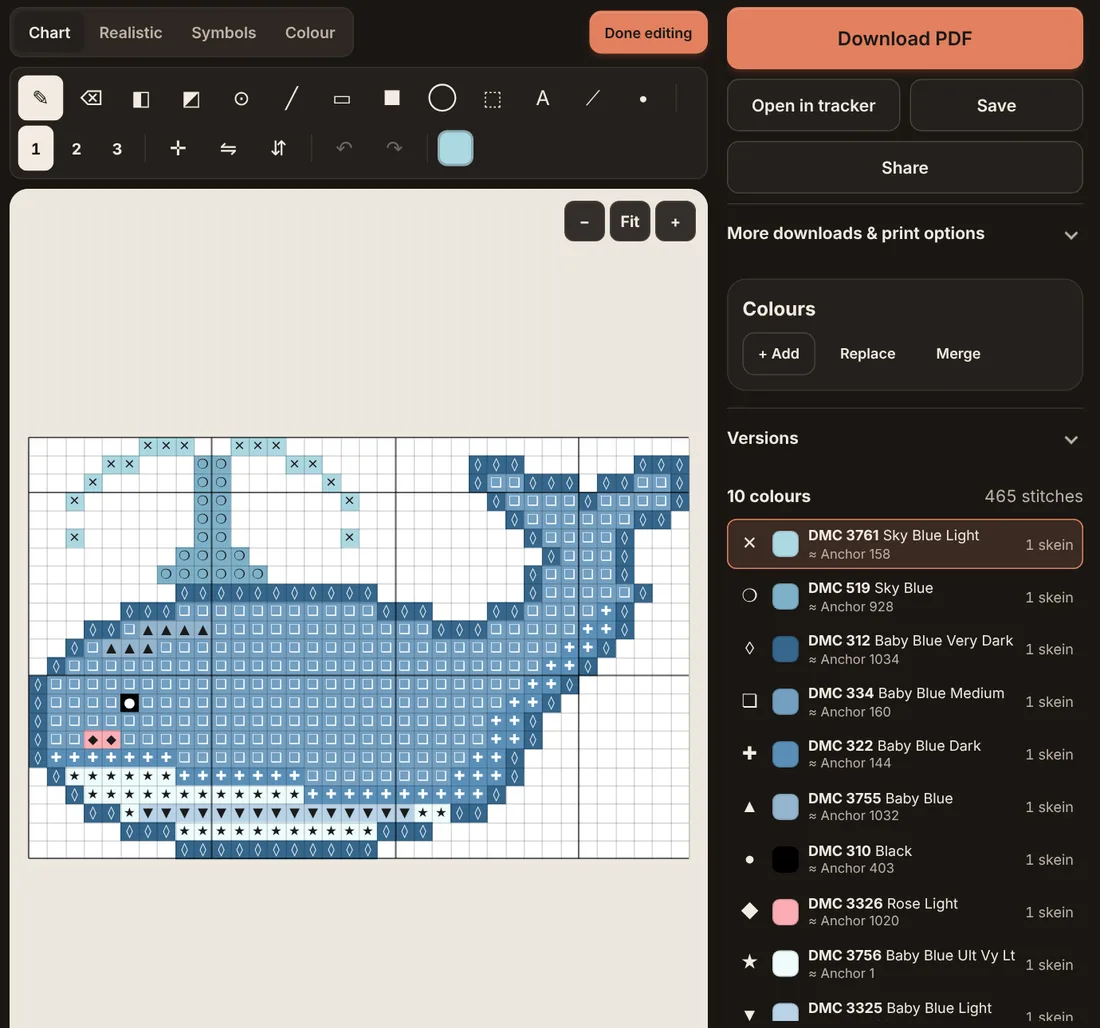
- Views: Chart, Realistic, Symbols and Colour
- Drawing tools: pencil to French knot, each with a shortcut
- Brush size, mirrors, flip, undo and redo
- Zoom and Fit
- Download, Save, Share and open in the tracker
- Add, Replace and Merge colours
- Versions: named snapshots you can restore
- Colour key with symbols, other-brand codes and skeins
Three ways to start
Open the editor for your craft from the Tools menu, then:
- New blank grid designs from scratch at the width and height you set.
- Open file or photo loads a .cpat or OXS pattern, a PDF made by CraftPatterns (it carries the pattern data inside), or a photo to convert.
- From a generator or pattern page, use Open in editor and your pattern arrives already loaded.
The editor handles grids up to 2,000 × 2,000 cells.
Drawing tools and shortcuts
| Tool | Key | What it does |
|---|---|---|
| Pencil | B | Colours squares as you click or drag; right-click erases |
| Eraser | E | Clears squares back to unstitched fabric |
| Fill | G | Floods a connected area of one colour |
| Replace all | Shift+G | Changes every square of that colour, connected or not |
| Pick colour | I | Takes the colour of a square to draw with |
| Line | L | Straight line between two points |
| Rectangle | R | Outline rectangle; the filled version sits next to it |
| Ellipse | O | Circles and ovals |
| Select | S | Box a region to move, copy, cut, paste, flip or rotate |
| Text stamp | Type a word, pick a font, click to place it | |
| Backstitch | T | Cross stitch only: drag between grid points; click a line to remove it |
| French knot | N | Cross stitch only: click a grid point to add or remove a knot |
Brush size (1, 2 or 3 squares) changes with [ and ], which makes filling big areas with the pencil much quicker. Number keys 1–9 jump to the first nine colours in the key, and X cycles to the next colour, so you rarely need to reach for the mouse.
Mirrors, flips and guides
Mirror left–right (H) and mirror top–bottom (V) repeat whatever you draw on the opposite side. Turn both on and you only draw a quarter of a symmetrical motif, such as a snowflake or a mandala. To flip or rotate part of a design instead, select it first. Centre guides draw lines through the middle of the grid, so you can line things up with the centre arrows that will appear on the chart.
Selections
With the Select tool, drag a box round part of the design. Drag inside the box to move it, or use Copy, Cut, Paste and Delete (or Ctrl/Cmd plus C, X, V and Delete). Flip and rotate work on the selection. Esc deselects.
Working with colours
Choose the active colour from the key or from the full palette with + Add.
- Replace swaps every square of one colour for another, for example to change a background from blue to grey.
- Merge folds one colour into another and removes it from the key: select the colour to remove, press Merge, then click the colour it should become. This is the quickest way to simplify a pattern made from a photo.
- Colours I own limits choices to threads or beads in your inventory, so you can design with what is already in your stash.
Each key entry shows its chart symbol, the nearest colour in the other brand and how many skeins (or bags of beads) to buy, updated as you draw.
Backstitch and French knots
On cross stitch charts, the backstitch tool draws lines between grid points rather than filling squares, and the knot tool places French knots on grid points. Both print on the PDF chart in their own colours and are counted in the thread estimate. Our guide to backstitch and French knots shows how much difference an outline makes and how little thread it uses.
Cleaning up a photo pattern
Patterns made from photos often have isolated single stitches of odd colours, called confetti. Zoom in, pick the surrounding colour with I and pencil over stray squares, or merge colours that differ only slightly. The guide to confetti measures what each cleanup level does.
Changing craft
The craft selector turns the pattern into another craft: a cross stitch motif becomes a fuse bead design, a C2C graph or an alpha bracelet. Colours are mapped to the nearest shades in the new craft’s palette and the materials list updates. Some crafts have differently shaped cells, such as knitting, so check the preview after switching. If two colours map to the same shade they merge, so compare the colour count before and after.
Undo, versions and saving
- Undo (Ctrl/Cmd+Z) remembers the last 500 steps; redo is Ctrl/Cmd+Shift+Z or Ctrl+Y.
- Versions are named snapshots: Save version before a big change, and Restore if you prefer the earlier design. The newest 10 are kept.
- Your edits are saved to the project in your browser as you work, including when you close the tab, and Save keeps it in My projects.
Browser storage can be cleared by you or the browser, so for anything you care about, download a .cpat file now and then.
Downloads
| Download | What it is for |
|---|---|
| Printing: cover with page map, colour key, numbered chart pages, optional colour pages and large print. It also carries the pattern data, so the editor can reopen it. | |
| Chart PNG | Sharing or viewing the chart on a tablet |
| Realistic PNG | A picture of how the finished piece will look |
| SVG | A vector chart for designers and other software |
| OXS | Cross stitch only: the open format other cross stitch programs read |
| Shopping list (CSV) | Every colour with its amount, for a spreadsheet or the shop |
| To buy only (CSV) | The shopping list minus what is in your inventory |
| .cpat project | The full pattern, to back up or open on another device |
When you are ready to stitch, Open in tracker takes the pattern straight to the stitch tracker. For printing advice, see printing pattern PDFs.
Tips
- Check contrast in the Colour view. If two neighbouring colours blur together on screen, they will in thread too.
- Use the Realistic view from a distance to judge the whole design.
- Save a version before big changes like switching craft or merging several colours.